
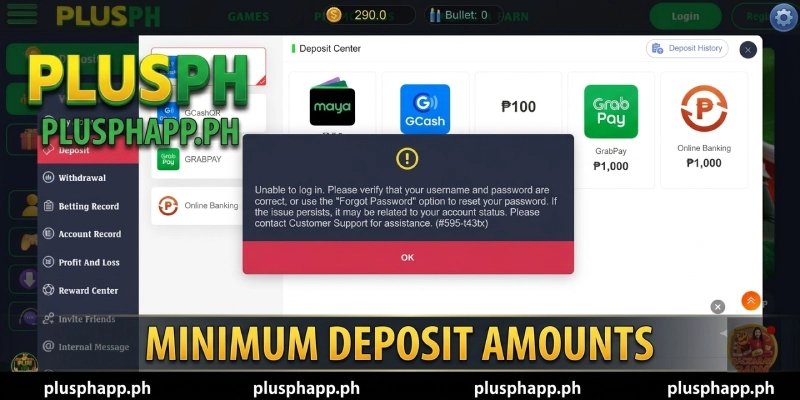
If your PlusPH deposit problem just left you staring at a failed transaction, you are not alone – most cases come down to one of five fixable causes. PlusPH supports six deposit channels, including GCash (min ₱100), Maya (min ₱50), GCASHPAY2, GrabPay, and Online Banking, and each channel has its own rules. Find your case below and follow the numbered fix to get your deposit through.
Quick Fix Checklist – Try These First

Before diving into specific cases, run through these checks at PLUSPH – most deposit failures are caught here in under two minutes.
- Check your internet connection is stable – a dropped connection mid-transaction cancels the deposit.
- Confirm you selected the correct deposit channel for your e-wallet (GCash channels are separate from Maya).
- Check the minimum deposit for your chosen channel – Maya requires ₱50, GCash requires ₱100.
- Make sure your GCash or Maya app is updated to the latest version.
- Verify your PlusPH account is fully registered – incomplete registration blocks deposits on some channels.
- Check that you are logged in to the correct GCash or Maya account linked to your PlusPH profile.
If the quick checklist does not resolve it, find your specific case below.
Case 1 – Wrong Minimum Deposit Amount
Each deposit channel at PlusPH has a different minimum amount. Entering an amount below the channel minimum will cause the transaction to fail or not process at all. The limits are as follows: Maya: ₱50, GCash and GCashQR: ₱100, GCASHPAY2: ₱300, GrabPay: ₱1,000 (max ₱5,000), and Online Banking: ₱1,000 (max ₱50,000).
To fix this, follow these steps:
- Go to the Deposit page on PlusPH.
- Select your preferred channel (GCash, Maya, GrabPay, etc.).
- Check the minimum amount displayed on screen for that specific channel.
- Enter an amount equal to or above that minimum.
- Confirm the transaction in your e-wallet app.
Prevention tip: If you want the lowest entry point, use Maya (₱50 minimum) – it also carries a standing 2% deposit cashback on every transaction.
Case 2 – Wrong Deposit Channel Selected

PlusPH lists multiple GCash-related channels – GCash, GCashQR (channels QR.4, QR.14, QR.5), and GCASHPAY2 – and they each route payments differently. Selecting GCASHPAY2 when you intended standard GCash, or tapping a QR channel without a working QR scanner, will result in a failed or stuck deposit.
To fix this, follow these steps:
- Go back to the Deposit page and tap the channel selector.
- For a standard GCash transfer, select the GCash channel (not GCashQR or GCASHPAY2).
- For QR-based payment from a mobile banking app, select the correct GCashQR sub-channel (QR.4, QR.14, or QR.5, depending on your bank).
- For GCASHPAY2, note the ₱300 minimum and confirm your GCash account supports this channel.
- Complete the payment in your GCash app after selecting the correct channel.
Prevention tip: If unsure which GCash channel to use, start with the standard GCash channel – it works for most direct GCash-to-PlusPH transfers.
Case 3 – GCash or Maya App Error
Sometimes the deposit fails not because of PlusPH but because the GCash or Maya app throws an error mid-transaction – this can happen during peak hours, after an app update, or when your e-wallet balance is insufficient. The deposit page on PlusPH will show a pending or failed status in this case.
To fix this, follow these steps:
- Check your GCash or Maya transaction history to confirm whether the amount was deducted from your e-wallet balance.
- If the amount was deducted but PlusPH does not show the deposit, wait 5 minutes and refresh. Most transactions reconcile automatically.
- If nothing was deducted, close the GCash or Maya app fully, reopen it, and retry the deposit from the PlusPH deposit page.
- If the GCash app shows an error code, note the code and contact GCash support directly – PlusPH cannot override GCash-side errors.
- As an alternative, switch to the Maya channel (min ₱50) to complete your deposit while the GCash issue resolves.
Prevention tip: Avoid depositing during 12:00 nn – 1:00 pm and 8:00 pm – 10:00 pm when GCash traffic is highest and timeout errors are more frequent.
Case 4 – Account Registration Incomplete
If your PlusPH account registration is not fully completed, certain deposit channels may be restricted. PlusPH also requires a valid bank card or e-wallet to be linked before the first withdrawal – and incomplete account setup can flag deposit attempts on some channels.
To fix this, follow these steps:
- Log in to PlusPH at plusphapp.ph and go to your account profile.
- Check that all required registration fields are completed – phone number, email, and preferred withdrawal method.
- If you have not yet linked a GCash or Maya account for withdrawals, do so now under the Withdrawal settings.
- Once your profile is complete, return to the Deposit page and retry your transaction.
- If your account shows a verification pending status, wait for the confirmation message before depositing.
If you have not yet created your account, you can follow the step-by-step process in the register at PlusPH guide.
Case 5 – Deposit Showing Pending Too Long
A deposit that shows as pending for more than 10 minutes may indicate a processing delay rather than an outright failure. This can happen during high server load periods or when the payment gateway takes longer to confirm the transaction with GCash or Maya.
To fix this, follow these steps:
- Wait 10 minutes and refresh your PlusPH deposit history page.
- Check your GCash or Maya transaction history to confirm the amount was sent successfully on the e-wallet side.
- If your e-wallet shows the payment completed but PlusPH still shows pending after 30 minutes, take a screenshot of the e-wallet transaction record (showing date, amount, and reference number).
- Contact PlusPH support with the screenshot and your PlusPH account ID – they can manually verify and credit the deposit.
- Do not attempt the deposit again until the pending transaction is resolved to avoid a double charge.
Prevention tip: Always save the reference number from your GCash or Maya payment confirmation – it is the fastest way for PlusPH support to locate a pending transaction.
When None of These Work – Contact PlusPH Support
If you have worked through all five cases above and your deposit is still not going through, contact PlusPH support directly. Have the following ready before you reach out – it will speed up the resolution.
- Your PlusPH account username or registered phone number.
- The deposit channel you used (GCash, Maya, etc.) and the amount.
- A screenshot of the failed or pending transaction from your e-wallet app.
- The date and time the deposit was attempted.
PlusPH support can be reached through the following channels:
- Email: [email protected]
- Phone: +63 234 390 1769
For a full walkthrough of how deposits work at PlusPH – including all channel limits and step-by-step instructions – visit the PlusPH deposit guide.
PlusPH Deposit Not Working – Frequently Asked Questions
The most common questions about PlusPH deposit problems are answered below.
Why did my PlusPH deposit fail even though GCash deducted the amount?
A PlusPH deposit problem where GCash deducted the amount but PlusPH shows nothing usually means the payment gateway timed out before confirming. Wait 10-30 minutes and refresh your deposit history – most transactions reconcile automatically. If it does not clear within 30 minutes, contact support with your GCash reference number and transaction amount.
What is the minimum deposit at PlusPH via GCash?
The minimum PlusPH deposit via GCash is ₱100. If you want a lower entry point, Maya accepts deposits from ₱50, and every Maya deposit at PlusPH carries a standing 2% cashback credited automatically.
Can I deposit at PlusPH using GrabPay?
Yes – PlusPH accepts GrabPay deposits via channel Ch. 25, with a minimum of ₱1,000 and a maximum of ₱5,000 per transaction. If your GrabPay deposit fails, confirm your GrabPay balance covers the ₱1,000 minimum and that you selected the correct channel on the PlusPH deposit page.
How long does a PlusPH deposit take to appear in my account?
Most PlusPH deposits via GCash and Maya are credited within 1-5 minutes. A deposit pending beyond 10 minutes usually indicates a gateway delay – wait up to 30 minutes before contacting support. Always keep your e-wallet transaction reference number handy to speed up any support request.
What should I do if PlusPH support does not respond quickly?
If PlusPH support at [email protected] or +63 234 390 1769 has not responded within a few hours, resend your message with the full transaction details – account ID, amount, channel, date, and e-wallet screenshot. Including these details upfront typically resolves most PlusPH deposit problems in a single exchange.
Back to Playing Fast
Most PlusPH deposit problems are fixed in under five minutes once you identify the correct case – wrong minimum amount, wrong channel, or a GCash-side timeout covers the majority. If the issue persists after working through all cases, the support team at [email protected] can trace any transaction using your e-wallet reference number. For the full step-by-step deposit process, visit the PlusPH blog or go straight to the PlusPH deposit guide for all channel limits and instructions.
⚠️ Responsible Gaming Notice: Gambling involves financial risk. Only play with money you can afford to lose. Players must be 21 years or older to register and play. PAGCOR Player Protection Hotline: 1-800-522-4700 (toll-free).
