
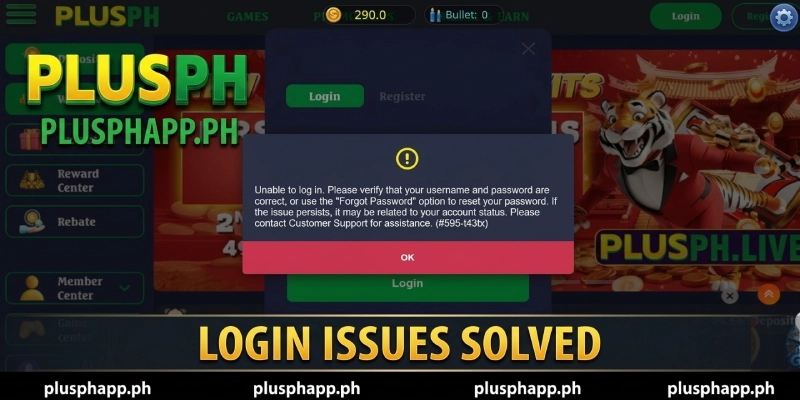
If your PlusPH login problem is keeping you out of your account, most cases are fixed in under three minutes. The most common causes are landing on the wrong domain, a mistyped password, or a cached app session – none of which require contacting support. Find your case below and follow the numbered steps to get back in.
Quick Fix Checklist – Try These First

Run through these checks at PLUSPH before working through the individual cases – they resolve the majority of login failures immediately.
- Confirm you are on the correct domain – the only official PlusPH login page is at plusphapp.ph. Any other domain is not the real platform.
- Check that Caps Lock is off before entering your password.
- Make sure your internet connection is stable – a weak connection can cause the login page to fail silently.
- Try a different browser or switch from browser to the PlusPH app (or vice versa).
- Clear your browser cache and cookies, then reload the login page.
- If using the PlusPH app, check that you have the latest version installed.
If none of these resolve it, find your specific case below.
Case 1 – Wrong Domain or Impostor Site
This is the most important case to check first. Several impostor and mirror sites mimic the PlusPH interface – including www-plusph.ph, which currently appears in search results for “PlusPH login.” These sites are not affiliated with PlusPH, and entering your credentials there puts your account at risk. If your login is not working, the first step is to confirm you are on the real platform.
To fix this, follow these steps:
- Close all browser tabs with any PlusPH-related pages open.
- Open a new browser tab and type the address manually: plusphapp.ph
- Do not use search engine results to navigate to PlusPH – bookmark the official URL instead.
- On the official page, enter your registered username and password.
- If the login succeeds, bookmark plusphapp.ph immediately so you always return to the correct domain.
Prevention tip: Bookmark https://plusphapp.ph/ now and use only that bookmark to access your account. Never log in via links sent through SMS or social media – these are common entry points for impostor redirects.

Case 2 – Incorrect Username or Password
A mistyped username or password is the most frequent cause of a PlusPH login problem. This includes passwords that were set a while ago and partially forgotten, or usernames entered with incorrect capitalisation. PlusPH credentials are case-sensitive.
To fix this, follow these steps:
- Go to plusphapp.ph and open the login page.
- Re-enter your username carefully – check for extra spaces before or after the text.
- Re-enter your password with Caps Lock off.
- If you are still unable to log in, tap the Forgot Password link on the login page.
- Enter your registered phone number or email address to receive a reset code.
- Enter the reset code, set a new password, and log in with the updated credentials.
Prevention tip: Use a password manager to store your PlusPH credentials – this eliminates typos and ensures you always have the correct password saved securely.
Case 3 – Account Not Yet Registered
Some players arrive at the PlusPH login page without having completed registration – either the sign-up was started but not finished, or the account was created on a different platform that is not PlusPH. In this case, no login will work because the account does not exist yet on plusphapp.ph.
To fix this, follow these steps:
- Go to plusphapp.ph and tap the Sign Up or Register button.
- Complete all required fields – phone number, password, and any referral code if applicable.
- Verify your phone number using the OTP sent to your registered number.
- Once registration is complete, return to the login page and sign in with your new credentials.
For a full walkthrough of the registration process, visit the register at PlusPH guide.
Case 4 – App Login Error or Outdated Version
If you are logging in through the PlusPH app and the login button does nothing, the page freezes, or you get a connection error, the most common causes are an outdated APK version, a corrupted app cache, or a failed installation. The PlusPH app is downloaded via the website as an APK – it is not on the Google Play Store or Apple App Store under a verified listing.
To fix this, follow these steps:
- On your Android device, go to Settings – Apps – PlusPH and tap Clear Cache and Clear Data.
- Reopen the app and try logging in again.
- If the error persists, uninstall the current PlusPH app from your device.
- Go to plusphapp.ph in your mobile browser and download the latest APK from the official app download section.
- Install the new APK (you may need to allow installation from unknown sources in your Android settings).
- Open the freshly installed app and log in with your credentials.
For the full APK download and installation steps, visit the PlusPH app download guide.
Prevention tip: When PlusPH releases an app update, download it promptly from plusphapp.ph – older APK versions can lose compatibility with the login server over time.
Case 5 – Account Temporarily Restricted
In some cases, PlusPH may place a temporary restriction on an account following multiple failed login attempts, a flagged security event, or a pending KYC verification requirement. When this happens, the login page will typically show an error message or the account will appear inactive. This is not a permanent block in most cases – it requires a short verification step to lift.
To fix this, follow these steps:
- Note any error message displayed on the login screen – this gives support the fastest route to your issue.
- Wait 15-30 minutes if you have made several failed login attempts in a short period – the temporary lock releases automatically.
- If the restriction persists after waiting, contact PlusPH support directly with your registered account details.
- If KYC verification is required, prepare a valid ID and your registered e-wallet details – support will guide you through the verification step.
- Once the restriction is lifted by support, log in immediately and update your password to something secure.
When None of These Work – Contact PlusPH Support
If you have worked through all five cases and still cannot access your account, contact PlusPH support directly. Have the following ready before reaching out – it speeds up resolution significantly.
- Your registered phone number or username on PlusPH.
- The exact error message displayed on the login screen (screenshot if possible).
- The device and browser or app version you are using.
- The date and time you first noticed the login problem.
PlusPH support can be reached through the following channels:
- Email: [email protected]
- Phone: +63 234 390 1769
PlusPH Login Problem – Frequently Asked Questions
The most common questions about PlusPH login issues are answered below.
Why can’t I log in to PlusPH even with the correct password?
A PlusPH login problem with the correct password usually means you are on the wrong domain, your browser cache is holding a stale session, or the account has a temporary restriction. Confirm you are on plusphapp.ph, clear your browser cache, and retry. If the issue persists after 30 minutes, contact support at [email protected] with your registered phone number.
What is the official PlusPH login URL?
The only official PlusPH login page is at plusphapp.ph. Any other domain – including www-plusph.ph or any site using “plusph” in the URL without the official domain – is not affiliated with PlusPH. Always type the address manually or use a saved bookmark rather than clicking links from search results or messages.
How do I reset my PlusPH password?
To reset your PlusPH password, go to plusphapp.ph, tap Forgot Password on the login page, and enter your registered phone number. You will receive an OTP within 1-2 minutes. Enter the code, set a new password of at least 8 characters, and log in with the updated credentials. If the OTP does not arrive within 5 minutes, check that your registered number is active and retry.
Can I log in to PlusPH on both a browser and the app at the same time?
PlusPH allows you to access your account via the official app or a mobile/desktop browser at plusphapp.ph. However, logging in on 2 devices simultaneously may trigger a session conflict that logs one session out. If your login keeps dropping, close the other session first, then log in on your preferred device.
Why does the PlusPH app keep showing a login error after I enter the correct details?
A PlusPH app login error with correct credentials usually points to an outdated APK or a corrupted app cache. Clear the app cache under your device settings, then uninstall and reinstall using the latest APK downloaded from plusphapp.ph. Most app login errors are resolved after a clean reinstall – the process takes under 5 minutes.
Back in Your Account Fast
The five cases above cover the large majority of PlusPH login problems – wrong domain, incorrect password, unregistered account, app cache issue, and temporary restriction. Work through them in order, and most players are back in their accounts within a few minutes. Once you are logged in, the next step is usually funding your account – the PlusPH deposit guide covers all channels and limits. For more platform help, browse the PlusPH blog.
⚠️ Responsible Gaming Notice: Gambling involves financial risk. Only play with money you can afford to lose. Players must be 21 years or older to register and play. PAGCOR Player Protection Hotline: 1-800-522-4700 (toll-free).
